

Turn stream events into action chains
Build stream automation in strAImer for Windows: choose a reward, donation, chat command or button, then arrange the actions it runs. For example, a channel point reward can play a sound, switch an OBS scene, wait 30 seconds and switch back.
Free — like everything that runs on your own PC.
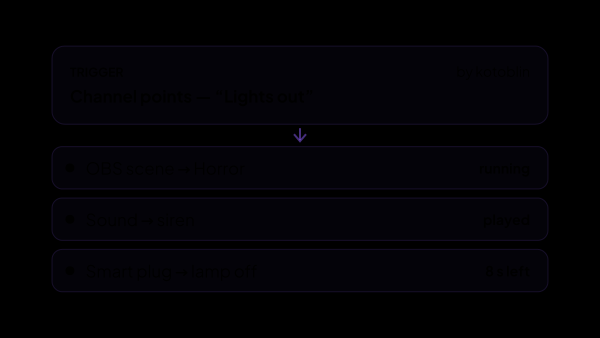
- OBS scene → Horror
- Sound → siren
- Smart plug → lamp off
Thirteen things can start a scenario, and this is all of them
A trigger is the thing that happened. One scenario can hold several of them, and any one starts the same chain — you never copy a scenario just to give it a second way in.
- A channel point reward is redeemed. Twitch and Kick rewards sit in one list, and you never name the platform: each one gives its rewards ids of its own, so the id alone tells them apart.
- A donation, with a condition on the amount: any of them, from a figure and up, exactly that figure, or between two. Amounts are compared in your base currency, whatever the viewer paid in.
- Bits, from a number and up.
- A subscription — any of them, only new ones, or only renewals.
- A batch of gifted subs, from a number and up.
- A raid, from a number of viewers and up.
- A new follower.
- The stream going live.
- The stream ending.
- A button on your control panel — the same automation, run by you, for the moments a viewer should not be the one deciding.
- A phrase you say out loud. Recognition is a model on your own machine, so a voice trigger spends no credits — but it is switched off until you turn it on and download that model.
- A built-in Twitch purchase — Highlight My Message and its neighbours. They arrive as a mark on a chat line rather than as a reward of your own, so they have a way in of their own.
- A message in chat: a command, a phrase at the start of it, or a whole word anywhere in it. You choose who may start it — anyone, subscribers and above, moderators, or only you — and a pause, because a command in chat gets repeated.
Eleven things a step can do, and this is all of them
Steps run in the order you arranged them, and a delay of any length can sit between any two. A line written in chat or spoken out loud carries who set it off, how much they gave, which reward it was and what they typed.
- Switch the OBS scene.
- Show or hide a source.
- Turn a source filter on or off.
- Mute a microphone, or unmute it.
- Set the volume of an audio input.
- Play a sound from your own folder. The app plays it itself, so a short sound never loses its first moment to a browser source that had gone to sleep.
- Switch a Shelly smart plug — on for a set time, on until a later step turns it off, or off.
- Save a clip on Twitch.
- Write a line in chat.
- Say a line out loud, read by the voice over on this machine.
- Call another service: an address, GET or POST, JSON or plain text, and headers if the service asks for a key. That is how a word in chat reaches Discord, n8n, Make, a smart home or a script of your own.
An effect that takes itself back
Automation on stream usually gets switched off after a week because something stayed on and nobody noticed. Here the taking-back is part of the same rule, not a second rule you have to remember.
- Give an effect a number of seconds and the step that undoes it: the filter goes off, the scene comes back, the plug goes dark.
- A second trigger while the countdown is running extends it instead of starting over. Three redemptions in a row make one effect three times as long, not three fighting each other.
- A plug switched on for a set time turns itself off at the plug, so it goes dark even if the app is closed by then.
- A chain caught mid-delay when you quit finishes counting the next time the app opens.
- A test-run button on every scenario plays the whole chain right now, by the same path a live trigger takes — repeats included.
Groups: one condition, one switch
A group is a folder that can watch something and switch itself. While its condition does not hold, nothing inside it fires.
- Four conditions: a source is visible on a chosen scene, a chosen scene is live, a source is visible on whatever scene is live right now, or the auction is accepting channel points.
- The group also switches the channel point rewards you tick. Webcam off screen, reward hidden — and nobody spends points on an effect you cannot show.
- Twitch only lets an app switch the rewards it created itself, so a reward you made in the Twitch dashboard is listed but cannot be hidden. Kick hands over its list of rewards but no switch for them.
Seeing what happened
Automation that works silently is indistinguishable from automation that is broken. Two tiles make it visible on the control panel.
- Running now: which chains are sitting in a delay, which step they are on and how long is left.
- Fired recently: the last twenty runs, with the time and what set each one off — a donation, a reward, a panel button.
- A repeat button re-runs a chain that did not land — the smoke machine was cold, the lamp was unplugged, OBS did not answer for a second. The viewer has already paid.
- All your scenarios in one folded list, so you can fire the one the stream has not called for yet.
- The buttons tile holds your own named slots with an icon and a colour, and a slot can carry a global hotkey. Windows silences hotkeys while a game running as administrator has focus — a helper you switch on once, with a single Windows prompt, gets them back.
What it is made of
Each part is a separate module: you install only the ones you need, and any of them can be removed without breaking the rest.
Getting started
- One of the steps needs a module the installer does not carry: Shelly Smart Plugs. It is free, in Module Catalog → Add-ons.
- Connect whatever the steps will reach: OBS over its WebSocket server, a smart plug on your home network. Sound and chat need nothing extra.
- Open Automation → Scenarios and create one: add a trigger, then the chain of steps.
- For a voice trigger, open Voice → Speech recognition and set it up: out of the box recognition is off, no model is downloaded, and nothing opens the microphone until you pick a key to hold or leave it listening all stream.
- For an effect that should not stay on, set how many seconds it lasts and the step that undoes it.
- Press the test-run button and watch the whole chain go, without waiting for a viewer.
- Put the Scenarios: Running tile on the control panel, and Panel: Buttons if you want to fire a scenario by hand.
One thing a scenario deliberately cannot do is start or stop your recording or your stream. The usual trigger is a channel point reward, and that would hand your broadcast to anyone with enough points.
Works together with
Get strAImer
Everything on this page runs on your own computer — free, no account, nothing to connect.
Missing something here? Ask for it on the ideas board — votes show what people need most. Propose an idea