

Control OBS and Twitch by voice
strAImer is a Windows app for controlling OBS and Twitch by voice while you play. Say “switch to the Break scene”, start a Twitch poll or save a clip without leaving your game. Speech is recognized on your PC; the AI assistant uses account credits.
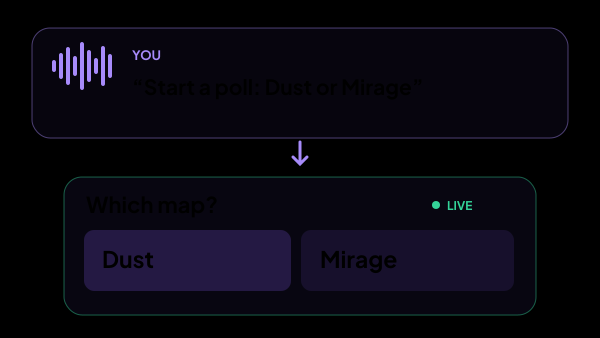
“Start a poll: Dust or Mirage”
Which map?
Twelve things it does, and this is all of them
Say it the way you would say it to a person. The assistant works out which one you meant.
- Start a poll — “start a poll: which map, Dust or Mirage”.
- Finish the poll early and show the result.
- Start a prediction — “do we win this one, yes or no”.
- Close the betting on a prediction.
- Resolve the prediction and pay the points out.
- Cancel the prediction and refund everyone.
- Switch the OBS scene — “go to the Break scene”.
- Change the stream title, the category, or both.
- Save a clip — “clip that”.
- Write in chat — “tell chat the stream ends in ten minutes”.
- Press a button on your control panel, which runs the whole scenario behind it.
- Switch a smart plug — “turn the lamp on for a minute”.
What it answers without doing anything
Everything that is not one of the twelve is an ordinary answer, out loud, while you keep playing.
- What is on right now: the title, the category, how long you have been live and how many people are watching.
- What you played on your last five streams, how long each ran and how many were watching at the peak.
- Your own chat commands by name, the lots of a running auction and their totals.
- Facts you wrote down yourself — your links, your gear, the answers you repeat every stream.
- Anything from the web, when the question needs it and you allowed searching.
No list of phrases to learn
Voice commands usually mean memorising the exact wording. Here the most common commands are recognised on your own PC, and the AI works out everything else.
- Saving a clip, switching a scene, turning a smart plug on or off by name, ending a poll, locking or cancelling a prediction: these are recognised on your PC without the AI, run at once and cost no credits.
- “Cut a clip”, “clip that” and “save this moment” all do the same thing.
- The names it may use — OBS scenes, panel buttons, smart plugs, prediction outcomes — come from what is actually connected, so it cannot invent a scene you do not have.
- Clips, title, polls and predictions go through Twitch. On YouTube and Kick the assistant writes in chat, switches scenes and runs your panel buttons.
Half of it runs here, half of it is the AI
Speech recognition is a model on your own disk: the sound never leaves the computer and adds nothing to the bill. The most common commands are recognised there too and cost nothing. Understanding everything else is the AI, and that half is what you pay for: the card for every action shows its price in credits before you use it.
- Pick a recognition model by the numbers we measured — speed and memory, on a graphics card and on a processor — not by its size.
- Hold a key and the microphone opens only while you hold it — it keeps working inside a full-screen game.
- Or keep the microphone open all stream and give the bot a name, so only “Nova, start a poll” reaches it.
- A common command like a clip or a scene switch costs nothing. Anything else is two requests to the AI, not one: a cheap step that repairs what was heard and decides what you meant, and the answer itself.
- The credits come from a strAImer account: a hundred a month on the free plan. When the AI carries out a command, one scene switch costs from two credits to six, depending on the model you picked; the dearer models need a paid plan.
Nothing irreversible happens quietly
Four of the twelve cannot be taken back — finishing a poll, closing the betting, paying a prediction out, refunding it. They start switched off, and when you switch them on the assistant asks first and names the outcome, not the action.
- Each of the twelve is a card of its own — switch off any you never want done by voice.
- A stop word silences the voice mid-sentence — say it and the bot goes quiet at once.
- Nothing a viewer types can trigger an action: the tools exist only for the microphone on your own machine.
You see everything it heard
A control panel tile keeps the feed of your phrases and the answers, in order, with a colour for how each one ended.
- Blue for an answer, green for something done, amber for a question back, red for a refusal with the reason next to it.
- The microphone button switches between hold-a-key and always, without leaving the panel.
- The power button stops recognition and frees the memory the model was using.
What it is made of
Each part is a separate module: you install only the ones you need, and any of them can be removed without breaking the rest.
Getting started
- Connect a strAImer account in Settings → strAImer Account: the credits the assistant spends come from there.
- Open Voice → Speech recognition, download a recognition model and choose when to listen — hold a key, or keep the microphone open and give the bot a name.
- Open Chat Bot → Voice control and switch on the actions you want.
- Put the Stream: Voice tile on the control panel, within reach.
All twelve are in the app you can download today: a recognition model on your own disk is enough for it to hear you, and the strAImer account pays for the half that understands you and acts.
Works together with
Get strAImer
Everything on this page runs on your own computer, except the model itself — it runs on our server and costs credits. The app shows the price before each request.
Missing something here? Ask for it on the ideas board — votes show what people need most. Propose an idea