

Chat on screen: one overlay for three platforms
Twitch, YouTube and Kick in a single list — with real badges, real emotes, platform icons and the nickname colours viewers picked themselves. Donations, subs and raids can join the same feed. Build one overlay per scene, each with its own look.
Free — like everything that runs on your own PC.
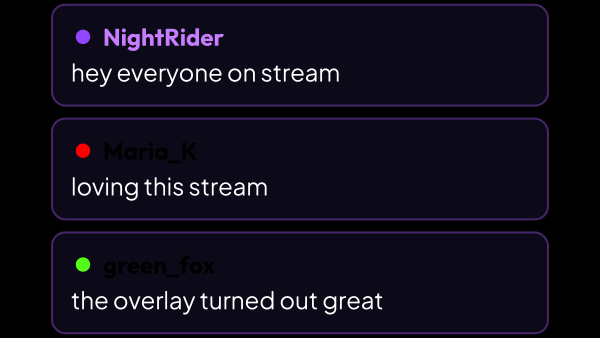
Three platforms, one list
Multi-streaming usually means watching three chat windows. Here they are merged, and each message says where it came from.
- A platform icon to the left of every message.
- Twitch badges as pictures; role chips — streamer, moderator, VIP, subscriber — for YouTube and Kick.
- Emotes from all three platforms rendered as images, not as codes.
- The nickname colour the viewer chose on their platform — and a colour of its own for viewers who never picked one.
Chat is not all that lands in the feed
Six kinds of channel event can share the list with the messages. Each one is a switch of its own, and they all start switched off: until you say otherwise, the feed is pure chat. Events belong to the column layout — the running line along the bottom carries chat and nothing else, however the switches are set.
- Donations — the amount, and the message that came with it.
- Bits — how many, and the text sent along with them.
- Subscriptions: a new one, a renewed one, or a bundle of gifted ones.
- New follows.
- Raids, with the number of viewers arriving.
- Channel point rewards — the name of the reward and whatever the viewer typed into it.
- One action makes one line: bits reach the app as several separate events, and the overlay still shows them once.
One overlay per scene
Chat has to sit differently in a talking scene and in a game: a wide column on one, a thin running line on the other. That is two overlays, not one overlay you keep re-styling.
- Each overlay has its own design, its own behaviour and its own link for OBS.
- Duplicating one copies its design too — start from what already works and change the one thing.
- The “On air” switch on each row turns an overlay off without deleting it: its OBS source goes empty in every scene and it takes nothing from chat. Switched back on, it starts with an empty feed instead of showing what was written while it was off.
- The link carries this machine’s address on the network instead of 127.0.0.1, so nothing has to be retyped when OBS runs on a second computer — turn on “Access from your local network” in Settings → Core and paste the link as it is.
How it behaves on screen
The overlay is not only a list. What it does with a message once it arrives is set separately from how the message looks.
- Two layouts: a column of bubbles, or a single running line along the bottom — at a speed you set — when there is no vertical room to spare. The line carries chat only, without channel events.
- The column fits as many messages as the area allows: old ones leave with an animation, and there is never a scrollbar.
- Where a new message appears and which edge the list piles up against are two separate settings, so a half-empty overlay does not float in the middle of the source.
- A display timer can make a message disappear after N seconds, or keep it until it is pushed out.
- Entry and exit animations — slide from any side, fade, shrink or pop — and a safe margin so bubbles do not touch the edge of the source.
What never reaches the screen
A feed on stream is not the same thing as the chat itself. Two settings decide what stays out of it.
- Messages starting with “!” can be hidden: chat sees the commands, the stream does not.
- A list of nicknames that never show up — your own bots first of all. Capitalisation does not matter and the “@” is optional.
- This is display, not moderation: a hidden message is still in chat, and the viewer sees no difference.
Making it fit your scene
A chat overlay sits on screen for the whole stream, so it has to match rather than merely work.
- Bubble, name, text and badges are styled separately: fonts including Cyrillic, colours, sizes, radius, border, shadow, padding and the gap between messages.
- Fifteen ready-made looks to start from: Neon, Minimal, Retro and twelve materials that draw every message in one look, from Live pencil to Frosted glass.
- An outline effect runs around each message, all the time or once when the message arrives: Electric, Fire, Frost, Comet and six more.
- The live preview shows your real chat while you edit, so nothing is styled blind.
- The overlay fits itself into whatever size you give the OBS source.
Setting it up before anyone writes
Styling a chat overlay against an empty screen is guesswork, so there is a way to fill it on demand.
- A test mode sends about two dozen demo messages — different platforms, lengths, emotes and roles.
- The flow goes into the preview and, at the same time, into every OBS overlay that is on air, which is what makes position and size adjustable without waiting for viewers, one scene after another.
- The demo texts are localized like everything else, so they read naturally in your language.
What it is made of
Each part is a separate module: you install only the ones you need, and any of them can be removed without breaking the rest.
Getting started
- Open Widgets → Chat Overlay and create one — name it after the scene it belongs to.
- Copy its link from the list and add a browser source in OBS.
- Style it next to the live preview, and use test mode to fill it on demand.
- Duplicate it for the next scene and change what needs to differ.
A stream runs for hours, and a chat overlay that keeps every message would eat memory until OBS stalls. The widget holds a limited number of messages on screen and drops the oldest — which is why it can be left running all evening.
Works together with
Get strAImer
Everything on this page runs on your own computer — free, no account, nothing to connect.
Missing something here? Ask for it on the ideas board — votes show what people need most. Propose an idea