

Alerts: pop-ups and sounds for stream events
Donations, subscriptions, followers, bits, raids and channel point rewards, each announced the way you decide — with its own look, its own sound and its own corner of the screen.
Free — like everything that runs on your own PC.
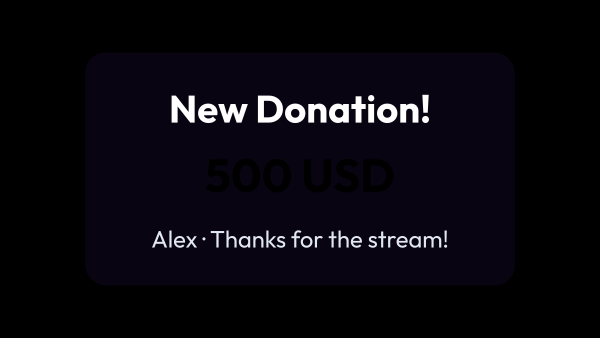
One alert per case, not one for everything
The smallest donation of the evening and the largest one should not look the same. Every alert is a separate card with its own filters, so the loud ones stay loud.
- Donations, bits, followers, subscriptions, gifted subs, raids and channel point redemptions.
- Subscriptions are split into the three cases that actually differ: new, renewed with the month count, and gifted with the giver’s name or “anonymous”. Tier 1/2/3 or Prime.
- Filters by amount, so a big donation gets its own treatment.
- The most specific alert wins on its own: when a donation fits both your general card and one with a higher threshold, the higher one plays and the general card stays quiet. There is no order to arrange by hand.
- Not every platform sends every event, and the list says which ones do: donations arrive from every connected service, subscriptions from Twitch and YouTube, channel points from Twitch and Kick, and followers, raids and bits from Twitch only.
- As many alerts as you want — nothing stops you making one per reward.
The card says what you tell it to
Nothing on it is fixed. What the three lines say, which picture and sound they come with, and how the card behaves are all set for each alert separately.
- Title, amount and message are your own text, with the viewer’s name, the amount, their message and what they bought dropped into place. Leave a line empty and it disappears.
- The picture is chosen as a file and copied into the app, so the overlay still finds it on the second computer where OBS usually sits.
- Every alert has its own sound, its own volume and its own time on screen — counted from the moment the card has finished arriving, not from the start of the animation.
- Fonts, colours, shadows and alignment are set separately for the title, the amount and the message; the background, the corner radius and the border belong to the card itself. Fifteen ready-made looks to start from: Neon, Minimal, Retro and one for each of the twelve materials.
- While it is up, the card can stand still or pulse, float, sway, breathe, glow or shake.
- In “Material” the card takes one of twelve looks, from Live pencil and Blueprint to Frosted glass, and the same look draws a frame around the picture or video. “Outline effect” runs one of ten effects around the card, Electric among them, all the time or only when the alert appears, and the picture or video can have an effect of its own.
A video instead of a picture
A donation can bring a video with sound, not just a still. The file is converted on your own machine the moment you add it, and the alert lasts exactly as long as the video does.
- Any format goes in: the app converts it to what an OBS browser source can actually play, so the alert is not empty on the stream. Conversion runs in real time, so a ten-second clip takes about ten seconds; five minutes is the limit.
- The video brings its own sound, so the alert’s own sound is switched off while the video is in place.
- Time on screen is the length of the video, and the queue counts that length, so the next alert waits instead of cutting in.
- The video sits where the picture would: beside the card on any of the four sides, inside it, or filling it.
- The preview plays it before the stream does, in the same look the viewer gets.
Groups: different places on the screen
A group is a set of alerts sharing one OBS link. That is the mechanism for putting donations in the centre and subscriptions in a corner.
- By default there is one group; copy its link into OBS once and everything shows in one place.
- Create a second group, move an alert into it, and add its link as a second browser source.
- Deleting a group does not delete its alerts — they move to the first remaining one.
- A group whose link is not open in OBS is skipped entirely, so a source you deleted does not keep the others waiting.
Priority, for when things pile up
Three subscriptions are queued and a donation arrives. Priority decides who goes next — and, just as importantly, what it never does.
- The higher the group in the list, the more important it is.
- A donation in a higher group goes next, without waiting behind the subscriptions.
- An alert already playing is never cut off: priority chooses the next one, it does not interrupt.
- Inside one group the order stays exactly as the events arrived.
- By default two alerts do not play at once, whichever groups they belong to: cards in different corners do not clash, but two sounds do.
- One switch lets a group out of the shared queue when that is what you want — a quiet corner with followers and no sound.
Sound
Alerts, scenarios and the synthesized voice all play through one output — the app itself. OBS picks it up with a single Application Audio Capture source, so a channel point reward can play a sound and switch a scene at once.
- Your own files from a folder on your computer, nothing uploaded anywhere.
- One source for everything: no separate audio to set up per overlay.
- OBS on a second PC, or too old for Application Audio Capture? Switch the output to a browser source in Settings → Sound.
Checked before the stream, not during it
Finding out on air that the sound is silent or the card lands off screen is the expensive way round. There are three checks, and they answer different questions.
- Preview, the first tab of the editor, holds the card still, so colours and fonts can be judged instead of chased.
- Test, the second tab, plays the whole thing once in an empty window — arrival, time on screen, exit — which is exactly what the OBS source does when an event comes in.
- Show in OBS is a button in the alert’s own row in the list, and it sends a real event down the real path: the queue, the overlay page and the sound. If that arrives, so will the donation.
What it is made of
Each part is a separate module: you install only the ones you need, and any of them can be removed without breaking the rest.
Getting started
- Connect the platforms and donation services you use.
- Open Widgets → Alerts, create an alert and pick what it reacts to.
- Copy the group link into OBS as a browser source.
- Add more groups if alerts should appear in different places on the screen.
The overlay link carries the address of your computer on the local network, so OBS on a second PC opens the same link — turn on local network access in Settings → Core first.
Works together with
Get strAImer
Everything on this page runs on your own computer — free, no account, nothing to connect.
Missing something here? Ask for it on the ideas board — votes show what people need most. Propose an idea